 LIMITLESS


 Limitless AIGetting startedDevelopment build
Install Limitless AI
on your desktop.
Get the development build, sign in with your Limitless account and land on Home. It takes a few minutes, and you only do it once: the app keeps itself up to date after that.
Limitless AI is in alpha. Development builds are for trying the app early: some things are openly unfinished, the Second Brain is in beta, and builds change often.
1Before you start
You need three things. If you already use GamerStake or SuperOS, you have the account part covered.
The published installer is for Windows x64.
One account for all three products. Create one
Sign-in and generation run on our servers.
2Pick your platform
Installers are built for Windows today. The macOS build exists but is not published yet. Check the Download page for the latest status.
Installer for 64-bit Windows. An installed copy updates itself.
Download for WindowsA macOS build exists and is being prepared for release.
[AWS DOWNLOAD LINK]No Linux installer has been published. You can run it from source.
[PLACEHOLDER]3Install on Windows
- 1
Download the installer
Get the Windows development build from the Download page. The file is named after the version it installs.
Limitless_Setup_0.0.126_x64.exe[AWS DOWNLOAD LINK] - 2
Run it
Open the file you downloaded and follow the installer. When it finishes, open Limitless.
- 3
Sign in with your Limitless account
Use the same account you use for GamerStake and SuperOS. A development build signs in against our development server,
dev.limitlessbrowser.ai. - 4
Answer five short questions
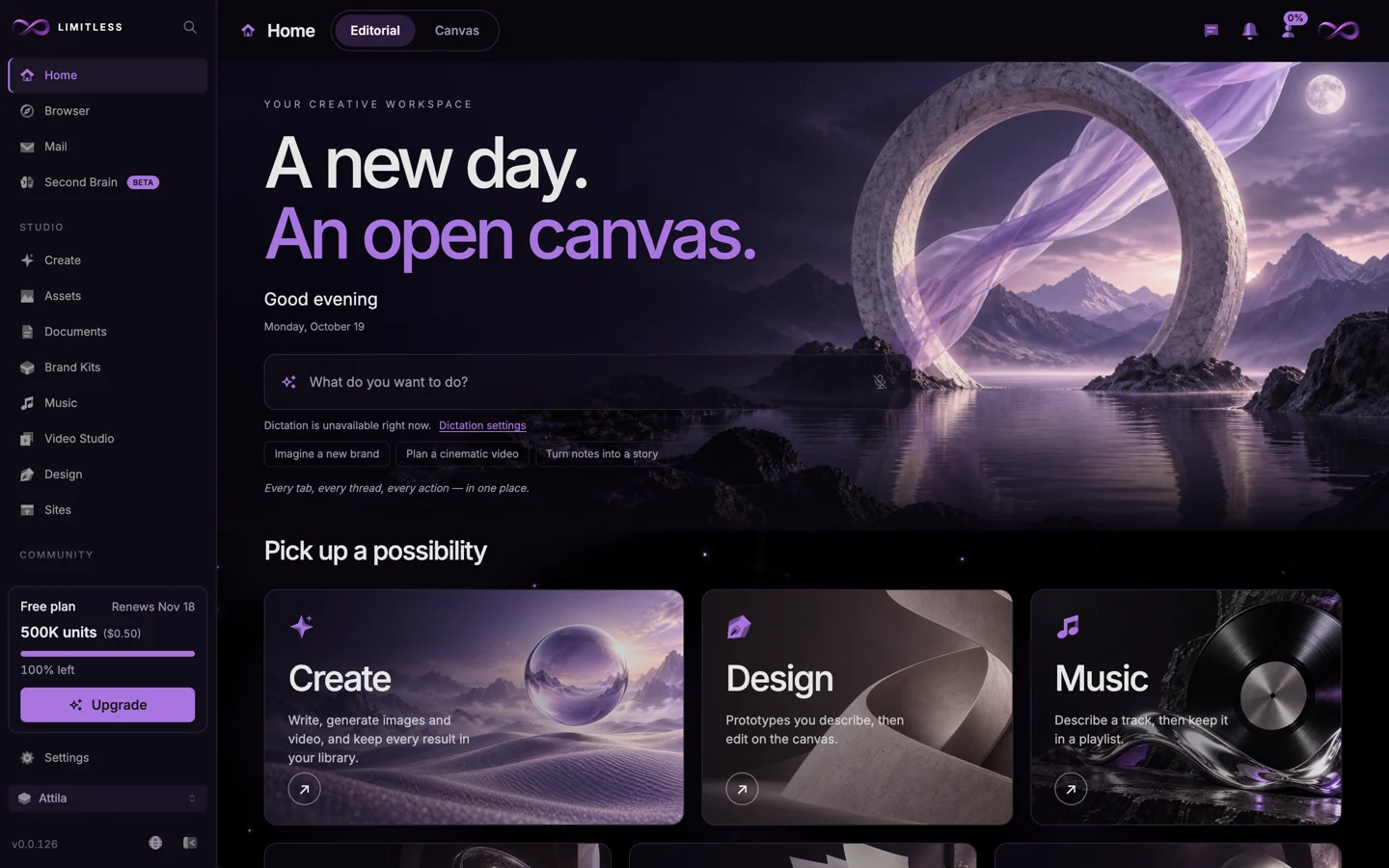
On the first launch the app asks five short questions about you, then shows a short tour of the left rail: Home, Browser, Mail, the Studio and more.
- 5
Start from Home
The tour ends on Home. Say what you want to do in the box, or pick a starting point: Create, Design or Music.
An installed copy updates itself when a new build is released. See what changed in each one on the changelog.
4Run it from source
Building it yourself, or on a platform without an installer? You need Node 22.22 or newer and Git. The app always runs in Electron: the same pages in a plain browser have no tabs, no vault and no wallet.
# get the codegit clone <repo-url> limitlesscd limitless# Electron, for the hostnpm installcd app && npx pnpm@10 install && cd ..npm run build# the SQLite driver for Node./scripts/rebuild-native.sh node# start it (npm run dev builds first)npm start
Run npx pnpm@10 as shown. pnpm 9 drops the dependency pins without a warning, and the app will not build the way it should.
Sign-in, storage and generation live in small services behind one gateway on port 4000. The app finds it through LIMITLESS_GATEWAY_URL. Start only the services you need, one at a time.
5If something goes wrong
Check that you are online and that you are using your Limitless account, the same email you use on GamerStake and SuperOS. Development builds sign in against dev.limitlessbrowser.ai. Still stuck? Contact support.
The app needs its backend. Sign-in, storage and generation run in small services behind one gateway on port 4000, so check that the gateway is running and that LIMITLESS_GATEWAY_URL points to it. Start the app with npm start so it runs in Electron, not in a plain browser.
Usually another copy of the app, or one of its services such as the gateway on port 4000, is still running and holding the port. Quit the other copy or stop that process, then start the app again.
Contact support and tell us which product you were using, what you did step by step, what you expected, and your device and app version. For a security problem, use the security report instead.